

How to Use an Online Phone Dialer


An online phone dialer is a simple web page where you type in a phone number and place a call straight from your browser — no software downloads or app installs required.
When you press dial, your call reaches a regular mobile phone or landline, so the person you're calling doesn't need an account, an app, or even an internet connection. The online dialer connects your browser to the phone network, letting you reach people on the phones they already use.
In this guide, we'll walk you through placing a call step by step, explain what you and your recipient need, compare how different dialer services work, and share simple fixes for when a call won't connect or the audio sounds unclear.
Step by Step: How to Place a Call From a Browser Dialer
Before getting started, make sure you have a desktop or mobile device with a modern browser, a stable internet connection, and a working microphone. Once your gear is ready, follow these simple steps to connect:
- Open the dialer page over HTTPS: Launch your browser and open the service. The page must use a secure HTTPS connection, or your browser will automatically block microphone access.
- Select the destination country: Choose the country you want your call to go to from the dropdown menu, which most tools place right before the phone number field.
- Enter the phone number: Type the number using the format displayed on screen. Typically, this includes the country code followed by the local number. Because zero-prefix rules vary by country — for instance, Italian geographic numbers keep their initial zero — always follow the site's specific prompt.
- Check four key call details: Before dialing, verify the detected country, the per-minute rate, whether your balance or free allowance covers the cost, and which caller ID will appear. Different browser dialer platforms show this info on the main page, inside your account dashboard, or as a simple dash for free tiers.
- Allow microphone access: Click "Allow" when your browser requests microphone permissions. Depending on your browser settings, this permission will be saved or requested again next time.
- Press call and connect: Click the call button and wait a moment for the status on screen to change to active.
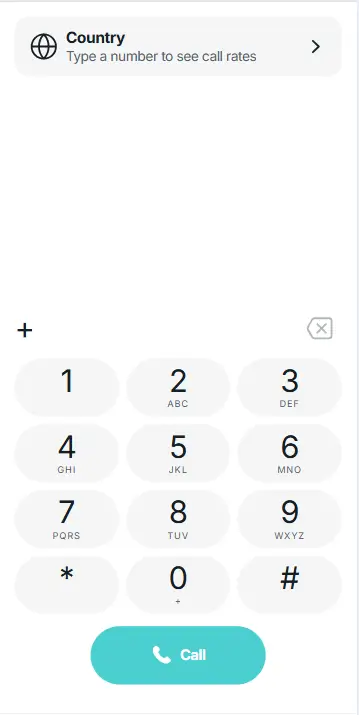
Once connected, your screen displays an active call timer and running balance. You can mute your microphone, switch audio devices, or pull up the touch-tone keypad to navigate automated voice menus for banks, airlines, or hotels. Hanging up ends the call and settles any charges against your balance. Using an online phone dialer to place a free call via internet to mobile networks or testing a dialer online takes just seconds.
What the Caller and the Recipient Need
You do not need a SIM card in your computer to place a browser call. The additional requirements depend on the service you choose:
- For the caller: You may need to create an account, verify your phone number by SMS, or add credit to your balance before calling.
- For the recipient: No additional setup is needed. They do not need an account, the service’s app, or an internet connection. A regular mobile phone or landline with a working number and active phone service is enough.
The caller ID your recipient sees depends on the service you use, as explained below. For a full breakdown of what you and your recipient need, read our guide on whether you can call a cell phone from a computer.
Ready to dial? You can start calling from your computer directly in your browser.
What an Online Phone Dialer Is — and What It Is Not
An online phone dialer is a web page with an on-screen dial pad that lets you call regular phone numbers from your browser.
The word “dialer” can also refer to auto-dialing software used by call centers or the built-in “Phone” app on Android smartphones.
You may also see the term “web softphone,” but it usually means a browser-based calling tool connected to a company’s phone system, rather than a consumer service for calling phone numbers.
You do not need to understand the technology to place a call, but our guide to how browser calls work explains what happens behind the scenes.
Where Online Phone Dialers Differ
Online phone dialers differ in what you need before calling, how you pay, and which numbers you can reach. Check support for your destination’s mobile networks and landlines, especially when using free access.
|
Service Model |
Before the First Call |
How Payment Works |
Free Access Limits |
Recipient Caller ID |
|
No registration (Call2Friends) |
No account |
Limited free calls; paid calling available |
Daily calls per IP address, duration, and destinations |
Not specified for unregistered browser calls |
|
Free trial, then top-up (HelloAirDial) |
Email account |
Prepaid, per-minute balance |
One minute to destinations costing $0.15/min or less |
Public number, verified personal number, or purchased virtual number |
|
Points with a weekly subscription offer (MySecondLine) |
Account to speak; verification may apply |
Earn or buy points; weekly upgrade available |
Available points and destination costs |
Not specified on the free-call page |
|
Account with top-up balance (Yolla) |
Account and number verification |
Prepaid, per-minute balance; monthly subscriptions and welcome offers for selected destinations |
Referral credits subject to conditions |
Your verified phone number |
Official pages checked September 16, 2026.
Some dialers only support outgoing calls. Others provide a virtual number for callbacks in your browser, usually with a separate monthly fee, as HelloAirDial does.
Check whether you can call, register, and pay from your country. A supported destination does not automatically mean the service is available where you are.
Quick Service Checklist Before You Call
Before choosing a service, check:
- Rates: Can you see the price before dialing?
- Payment: Is it a one-off payment, prepaid balance, or subscription?
- Renewal: Does a paid plan renew automatically, and are you explicitly asked to agree?
- Service details: Are the terms, privacy policy, and contact details easy to find?
- Caller ID: Which number will the recipient see?
- Extensions: Must you install a browser extension?
- Security: Does the page use HTTPS?
When the Call Does Not Go Through — or Sounds Bad
When a browser call fails to connect or suffers from poor audio, issues usually trace back to permissions, network settings, or service caps.
The Call Does Not Start
If dialing fails completely, check these potential blockers:
- Permissions & Browser: Microphone access is blocked or busy in another app, the browser is unsupported, or the site lacks an HTTPS connection.
- Formatting & Coverage: The phone number format is invalid, or the destination network is unsupported.
- Limits & Verification: Your free minutes, call caps, or credit balance are used up, or required account/number verification was skipped.
- Call Blocking: The recipient blocks unknown caller IDs. Fix this by checking what ID the service passes, alerting the recipient in advance, or using a provider with verified caller ID.
The Call Connects, but Quality Is Bad
If audio connects but sounds poor, check these hardware and network factors:
- Audio Routing: Incorrect microphones or speakers are selected in the browser or system settings.
- Echo & Distortion: Speaker sound loops into the microphone (headphones fix this instantly), or an unstable network, VPN, or firewall causes dropouts.
- Cutoffs & Keypads: Mid-call drops signal connection drops or expired balances, while DTMF keypad tones may fail in automated voice menus.
To troubleshoot quickly, try a different browser or device. Remember that browser dialers cannot reach emergency services — see our complete guide on how to make phone calls from a computer for emergency call limits by method.
What “Free” Covers on a Browser Dialer
If you are looking for a free online dialer, check what its free access includes. The services reviewed in September 2026 limit call duration, destinations, or available credit.
- Daily Limits: Some services limit how many free calls you can make each day and how long they last. PopTox confirms both restrictions.
- Free Trials: Some services offer a short call before you need to add credit. HelloAirDial provides a one-minute trial for eligible destinations.
- Free Credits: Credits may come from daily allowances or referral rewards. Globfone offers small free balance boosts, while Yolla awards referral credits subject to specific conditions.
Check whether an offer requires registration, verification, or payment details. If you choose a paid plan, review its renewal terms. Calls included in a subscription are covered by its price, rather than completely free.
Quality can also vary. Globfone states that its free services may use lower-cost routes, but paying does not guarantee a clear connection. Your internet connection and audio setup also matter.
For more detail, read our guide on free phone calls from a browser. Free calls can help you test a service. For longer conversations, check its paid rates and supported destinations.
FAQ
How do I call a phone number from my web browser?
Open a supported browser dialer, enter the destination phone number including its full country code, grant microphone permissions when prompted by your browser, and click the call button to connect.
Do I need to install anything to use an online phone dialer?
No, you do not need to install software, apps, or browser extensions. Web-based online phone dialers operate entirely inside standard web browsers like Chrome, Edge, Safari, or Firefox over an active internet connection.
Why can't the recipient call me back?
The recipient cannot call back because standard free browser dialers display generic, randomized, or unassigned caller IDs. You can only receive callbacks if you use a calling service with a verified personal number or an active virtual number package.